Editor power features
These tools live inside the note editor and turn it from "a textarea" into something closer to VS Code or Obsidian.
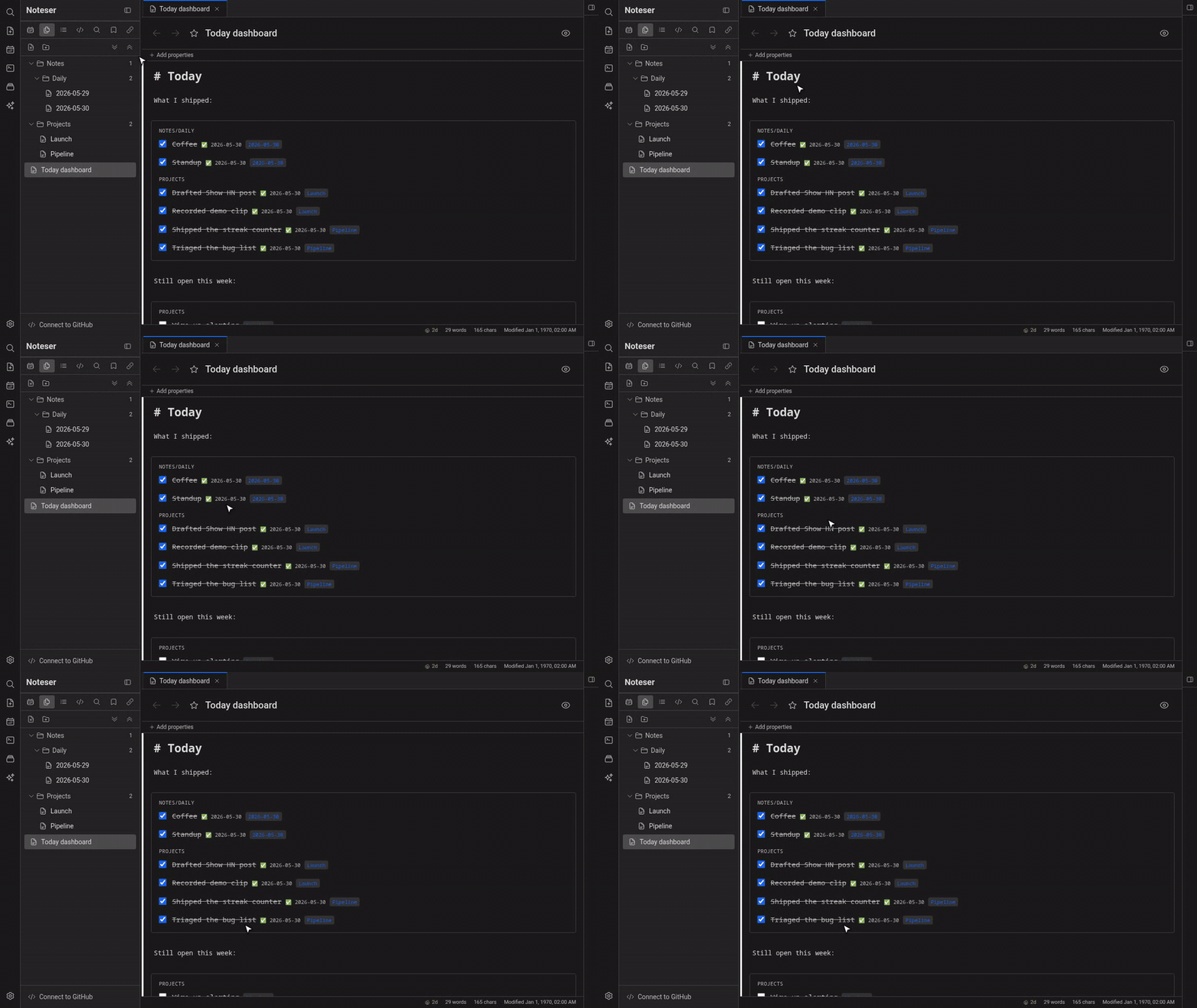
Live-preview formatting and a tasks query rendering inline.
Per-line revert (after sync)
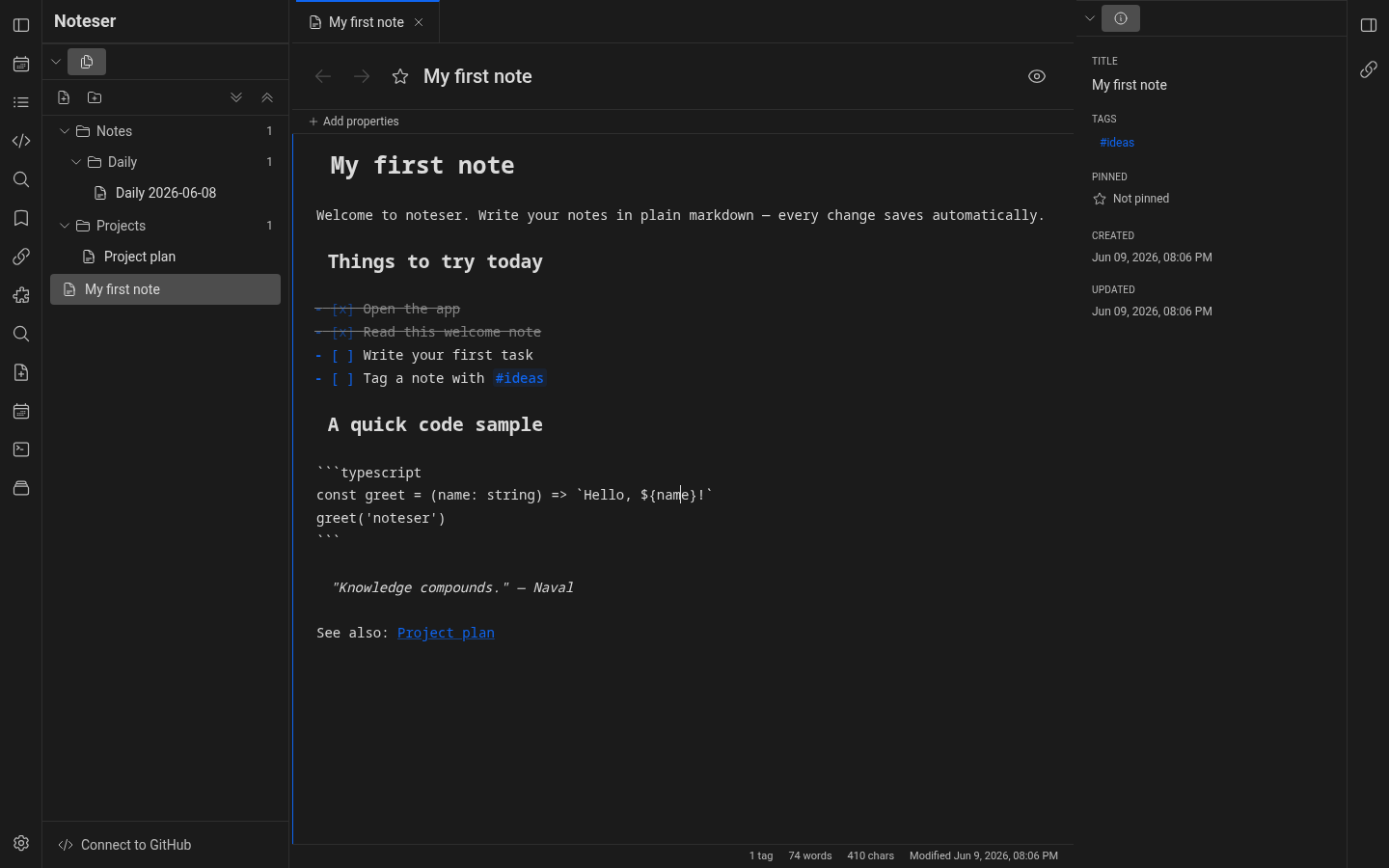
When you've synced a note to GitHub, the editor paints a thin colored bar in the left gutter next to lines that differ from the version you last pushed:
- green = added line
- yellow = modified line
Click any bar to revert that hunk to the last-pushed version. The
revert is a single edit, so Ctrl+Z restores it instantly. Multi-line
hunks revert as one unit — click anywhere in the hunk.
Useful when you've been tinkering and want to drop just one paragraph without losing the rest of your edits.
Find / replace (Ctrl+F, Ctrl+H)
Ctrl+F opens an inline find panel at the top of the editor. Type to
highlight every match in yellow. Enter jumps to the next match,
Shift+Enter to the previous. Esc closes the panel.
The panel always has a Replace field too — Ctrl+H opens the same
panel (Obsidian convention) and focuses the find input. Options for
Match case, Regex, and Match whole word are on the right.
Tag autocomplete on #
Type # after whitespace or punctuation. A dropdown appears with every
existing tag in your vault, ranked by usage count. Filter by typing more
characters. ↑/↓ to navigate, Enter or Tab to insert,
Esc to dismiss.
Mid-word # (e.g. color#fff) is not a tag start — the dropdown
won't open and the parser won't index it.
Wikilink autocomplete on [[
Same idea for notes: type [[ and a dropdown lists your notes with
fuzzy match on title and aliases. Enter inserts [[Note Title]].
If the typed query matches an alias, the row shows
(alias: <name>) so you know why it surfaced.
Markdown table insert (Ctrl+Alt+T)
Drops a 2-row × 2-col GFM table at the cursor:
| Header 1 | Header 2 |
| --- | --- |
| Cell 1 | Cell 2 |
| Cell 3 | Cell 4 |
Header 1 is pre-selected so you can immediately type to overwrite the
first column heading. On a non-empty line, the table is inserted on its
own block (preceded by a blank line).
Multi-paragraph list items (Shift+Enter)
Inside a bullet, ordered, or task line, Shift+Enter inserts a newline
plus a continuation indent that matches the current item's marker width.
The new line carries no marker, so the body keeps attaching to the same
list item instead of bailing out to a top-level paragraph at column 0.
Useful for multi-paragraph task notes.
Enteris unchanged: starts a fresh sibling list item, or exits the list when the current line is empty.Shift+Enteron a plain (non-list) line falls back to the default — a plain newline.
AI actions on the active note
Right-click any note in the sidebar → AI actions, or open the
command palette (Ctrl+Shift+P) and type "AI:". Five actions ship:
- Summarize note — 3–5 sentence summary
- Extract tasks — pulls actionable items into a checklist
- Suggest tags — proposes 3–7
#tagsfrom the body - Rewrite for clarity — polishes the prose without changing meaning
- Translate… — into a target language you specify
Requires a BYO Anthropic or OpenAI API key in Settings → AI.