GitHub sync
Noteser can sync your vault with a GitHub repo. One commit per sync, clean three-way merge, no plugins or extensions required — it talks to the GitHub Git Data API directly from the browser.
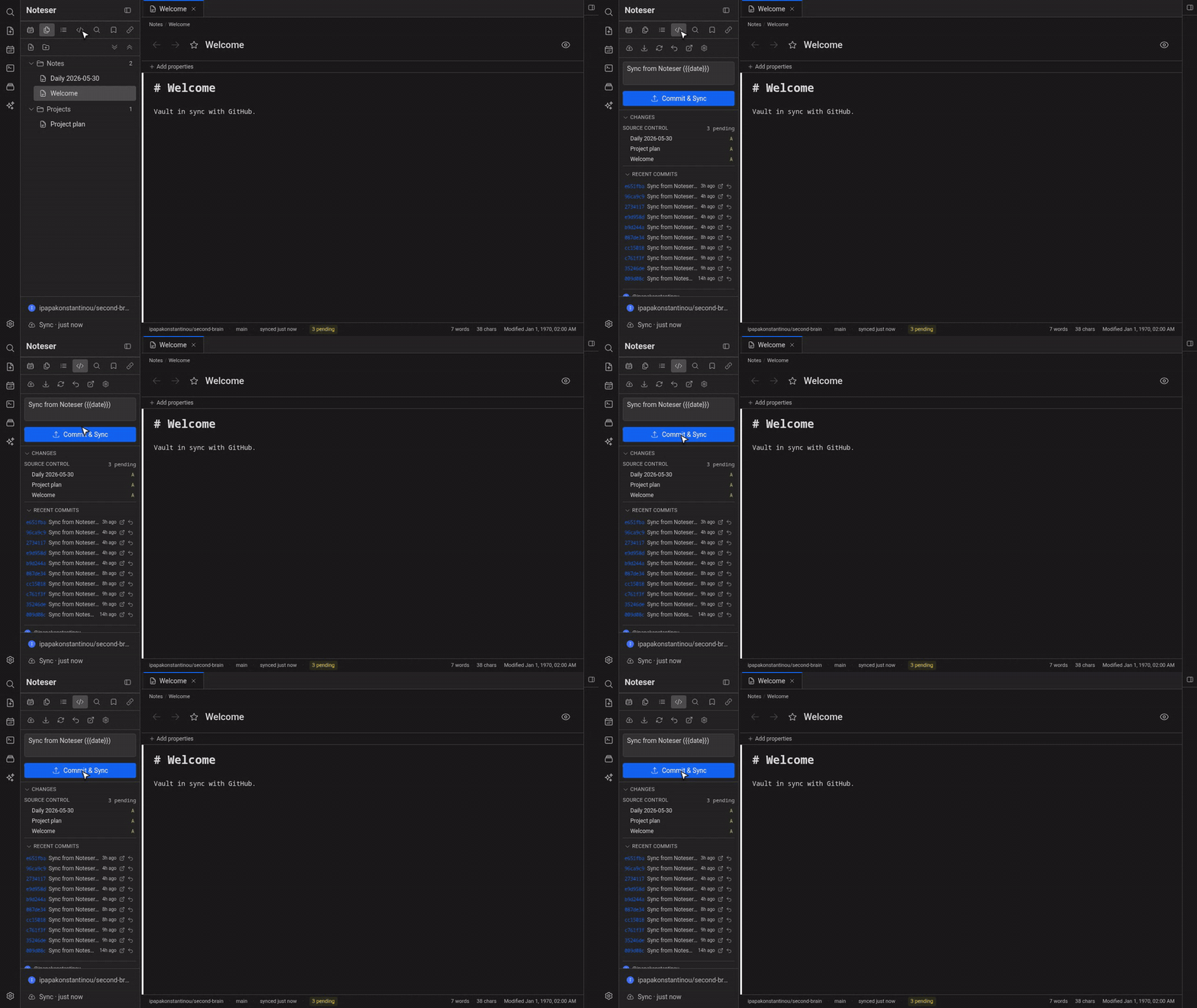
Commit and sync, view pending changes, scroll through history.
Connect a repo
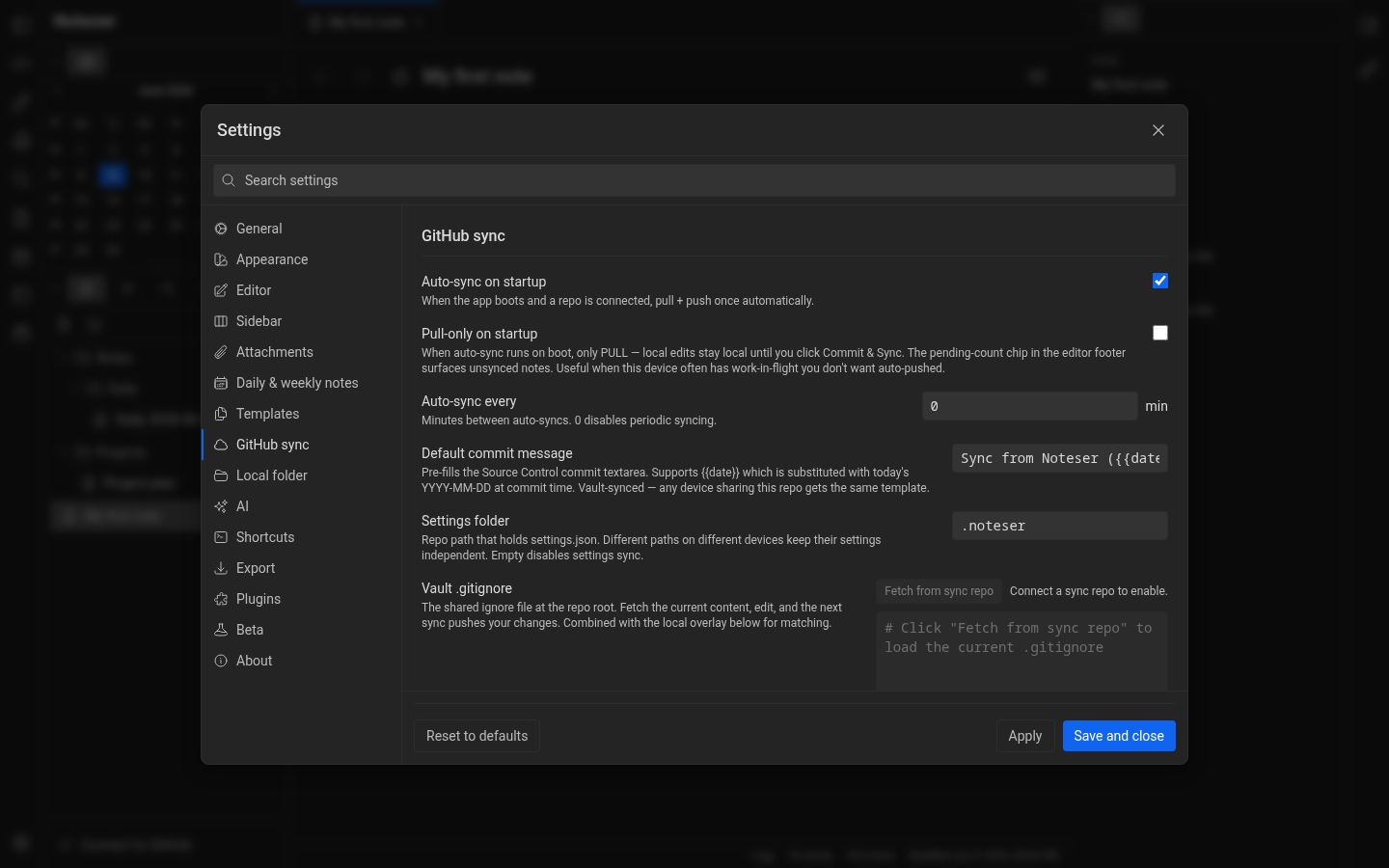
- Click the GitHub ribbon icon or open Settings → GitHub sync.
- Click Connect to GitHub. The device-code modal opens — copy the code, click the GitHub link, paste, and authorise.
- Pick a repo from the list. The first push will commit every existing note.
Commit & sync
- Open the Source Control sidebar tab (you can pin it).
- Pending changes appear in the CHANGES tree.
- Type a commit message (or leave blank to use the default
Sync from Noteser ({{date}})template). - Click Commit & Sync.
Ctrl+Enterin the message box does the same thing.
The default commit message is configurable in Settings → GitHub sync → Default commit message. The {{date}} token substitutes to today's YYYY-MM-DD (same format as daily-note titles) — the commit box shows the resolved date, never the literal placeholder.
Conflicts
If you and another device both edited the same note since the last sync, the merge tab opens automatically. Each side is shown line-by-line; pick Mine / Theirs / Merge per chunk, then Apply.
If three or more conflicts open at once, the Merge batch view summarises them with bulk "Keep all mine" / "Take all theirs" buttons.
Vault encryption
Optional — encrypts note bodies before push. Enabled in Settings → GitHub sync → Vault encryption. Pick a 12+ character passphrase; it's never persisted. Every page refresh re-locks the vault; you'll be prompted on next sync.
There is no recovery if you forget the passphrase. Use a password manager.
Reset to remote
Settings → GitHub sync → Reset to remote discards local edits to pushed notes and pulls fresh from GitHub. Unpushed local notes are preserved by default.