Sidebar, panels, and shortcuts
Pinning panels
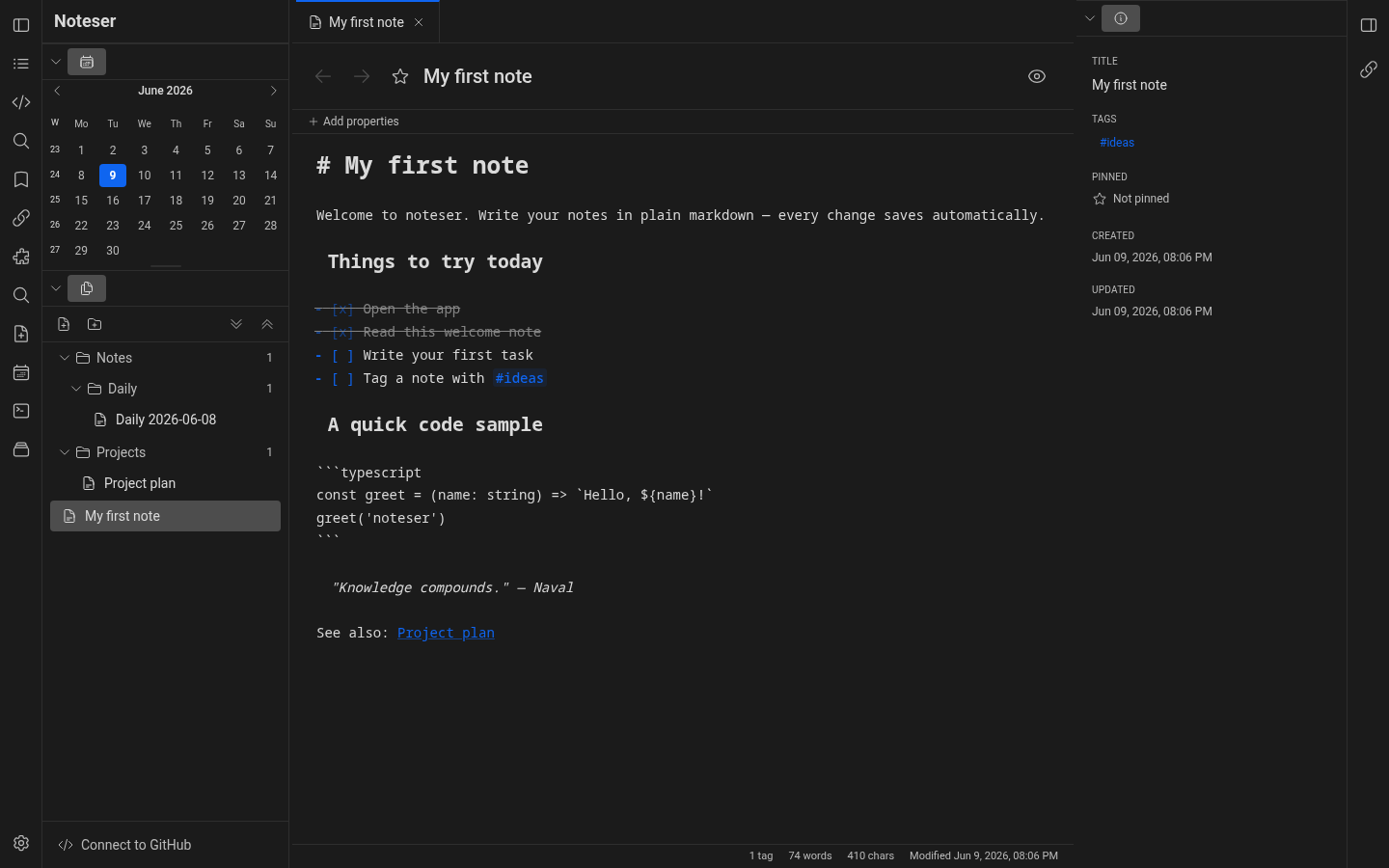
The left sidebar's bottom strip has tab icons (Calendar, Files, Outline, etc.). To keep a panel visible at the top of the sidebar:
- Right-click the tab icon → Pin to top.
- Or drag the tab icon UP to the pinned-area drop zone.
To unpin: right-click the mini-strip icon → Unpin.
You can have multiple pinned groups stacked vertically. Drag a tab from one group's strip onto another group's strip to combine them.
Hiding tabs
Don't use a tab? Right-click it → Hide tab. It disappears from both strips.
To restore: Settings → Sidebar lists every hidden tab with a Show button.
Collapsing pinned panels
Each pinned group has a chevron at the left of its mini-strip. Click to collapse the panel body (the strip stays visible). Click again to expand.
Collapse state persists across reloads, per group.
Right sidebar
The right edge of the screen has a thin strip with a panel-toggle icon. Click → 280px panel opens showing Properties for the active note (title, tags, pin toggle, gitPath, timestamps).
The body is hidden by default; the strip stays as a quick-access affordance.
Keyboard shortcuts
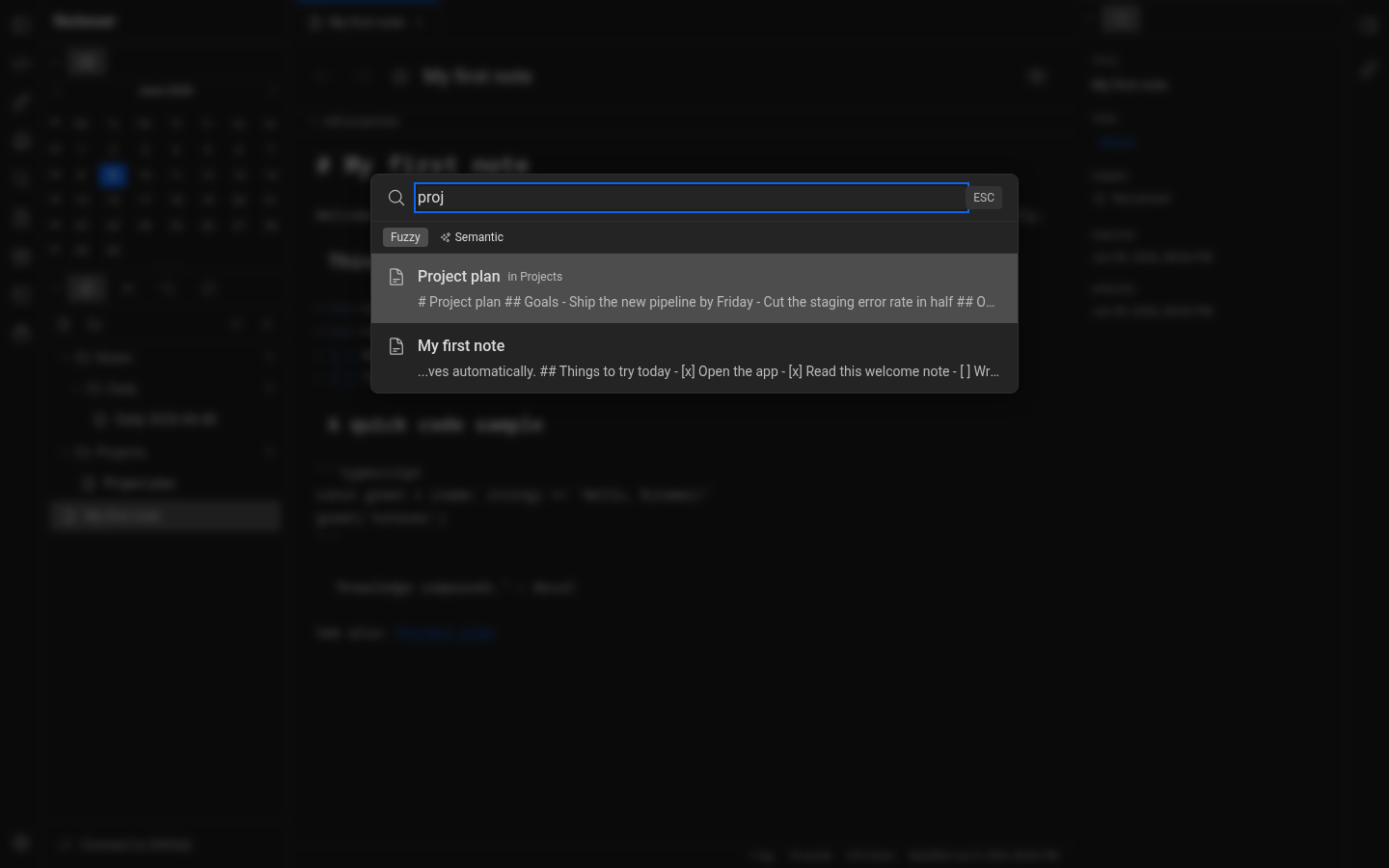
Open the shortcuts cheatsheet with Ctrl+/. Some highlights:
| Action | Shortcut |
|---|---|
| Search | Ctrl+K |
| Command palette | (via the ribbon icon) |
| New note | Alt+N |
| New folder | Ctrl+Shift+N |
| Toggle preview | Ctrl+E |
| Toggle sidebar | Ctrl+B |
| Close tab | Alt+W |
| Open settings | Ctrl+, |
| Toggle task at cursor | Alt+L |
| Remove task prefix | Alt+Shift+L |
| Continue list item paragraph | Shift+Enter |
| Find in note | Ctrl+F |
| Find & replace | Ctrl+H |
| Insert markdown table | Ctrl+Alt+T |
| Open today's daily note | (via ribbon button or empty-state CTA) |
Shortcut conflicts? Settings → Shortcuts lets you remap any of them.